# Extract a Shot List
## Configuration Setup
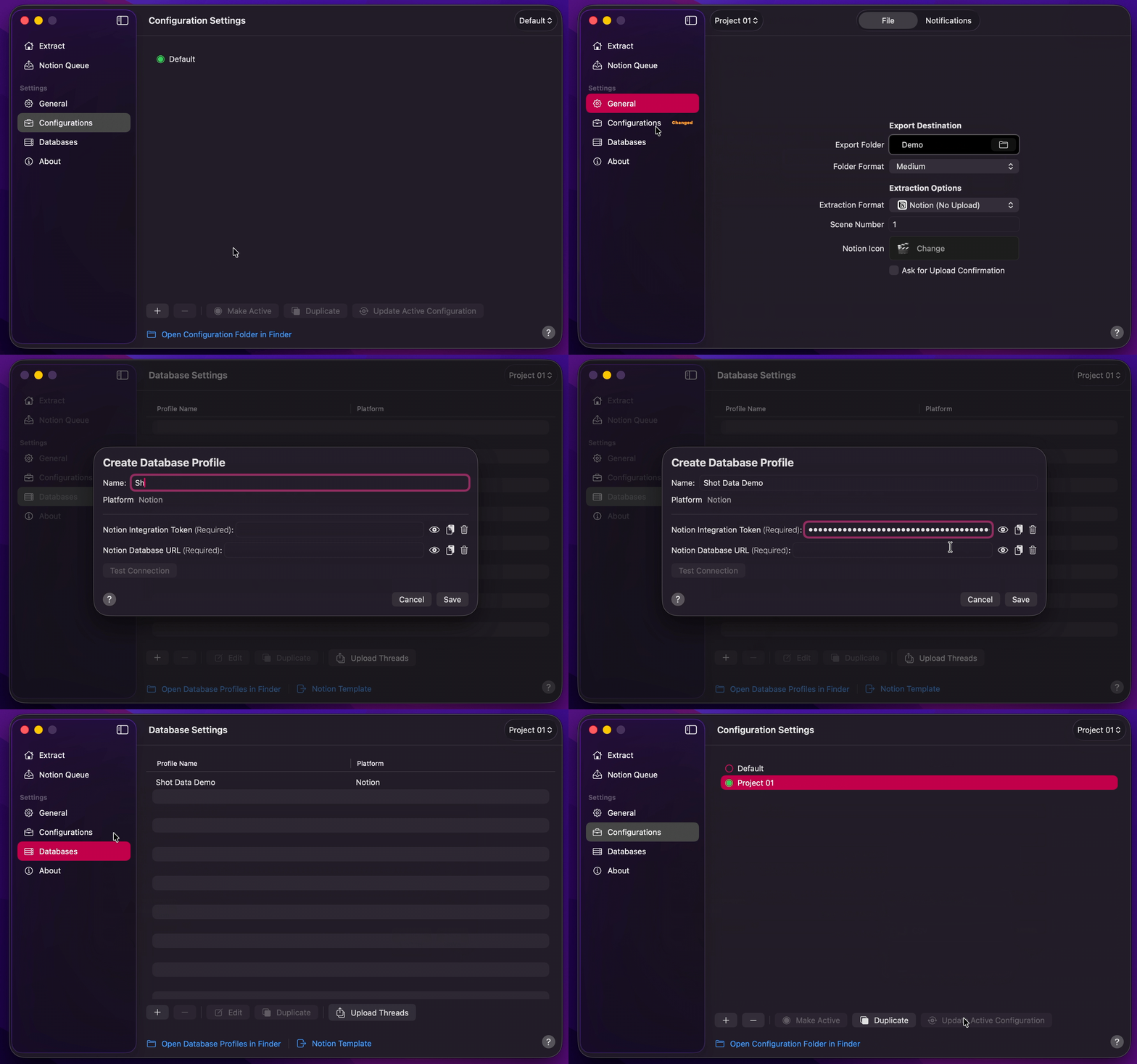
1. [Create Your Configuration](/user-guide/configurations/#add-configuration).
2. Select your desired Export Destination by clicking on the [Folder Icon](/user-guide/general/#export-folder).
3. Duplicate the [Shot Data Notion Template](/user-guide/databases/#notion-template), then create your [Database Profile](/user-guide/databases). Click `Test Connection` before you save.
4. Under [File](/user-guide/general/#extraction-format), set Extraction Format to that Database Profile.
5. Set [Scene Number](/user-guide/general/#scene-number) and [Folder Format](/user-guide/general/#folder-format) under [File](/user-guide/general).
6. Return to Configurations to [Update Active Configuration](/user-guide/configurations/#update-active-configuration).
!!!info Info
This walkthrough extracts and uploads in one run. The app default is `Notion (No Upload)`, which writes a local Notion JSON manifest and PNGs only. `CSV` extracts are local only and do not appear in [Notion Queue](/user-guide/notion-queue). To extract first and upload later, see [Notion Queue](/in-action/notion-queue). Extraction begins as soon as a valid timeline is received.
!!!
## Final Cut Pro to Shot List
1. Drag and drop your `.fcpxml` or `.fcpxmld` file onto [Extract](/user-guide/extract), or drag a timeline / compound clip from Final Cut Pro.
2. **Shot Data** will begin the extraction. If it cannot open the source stills, `Choose Media Folder` will appear — see [Choose Media Folder](/user-guide/extract#choose-media-folder).
3. Extract runs to completion, then upload shows `Upload (n/total)`.
4. **Shot Data** will write one PNG per shot and a Notion manifest into a uniquely named folder in your Export Destination, then upload that shot list to Notion.
5. When the run finishes, press `Open Notion Database` to view the uploaded shot list, and `Show in Finder` to review the PNGs and manifest.
!!!info Info
`Open Notion Database` appears after extract-and-upload. It is not shown for `Notion (No Upload)` or CSV. Option-click to open the database in your web browser.
!!!
## Afterthoughts
Once a Final Cut Pro timeline has been extracted into a meaningful shot list, that shot list no longer sits inert in a folder. It lives inside a Notion database, and in doing so it becomes something a production can genuinely work with.
This is where the extraction stops being an endpoint and starts being a foundation. With the shots, their stills, and their ordering already in place, the full breadth of contemporary AI and LLM workflows becomes available to populate everything that surrounds them. By way of the [Notion MCP](https://www.notion.com/help/notion-mcp), a Notion database can be connected to virtually any AI agent, allowing column data to be drafted, refined, and populated on the fly. `Scene Description`, `Shot Size & Type`, `Camera Movement`, `Lighting Notes`, and the rest may be filled out conversationally against the very stills that were extracted, rather than typed into a spreadsheet by hand.
The practical consequence is delegation. A director need no longer be the sole bottleneck for shot list preparation. Scenes may be handed off to an assistant, who populates the accompanying data with the assistance of an AI agent, whilst the director continues cutting and locking the remaining scenes of the project. Both parties work in parallel, against the same live database, with no files to reconcile and no versions to merge.
That is the intention behind **Shot Data** stopping where it does. It undertakes the one task that cannot be delegated or inferred, namely the faithful translation of a locked stills timeline into an ordered, image-backed shot list, and then hands the production a structure that is ready to be built upon by whichever tools and collaborators suit it best.