Database Settings

Shot Data stores Notion Database Profiles so you can upload shot-list manifests during extract or later from Notion Queue. Each profile holds a Profile Name, Integration Token, and Database URL.
Creating a Notion Database Profile
Info
Duplicate the Shot ID and must use Notion’s Title property type. Shot Data will not create that column for you.
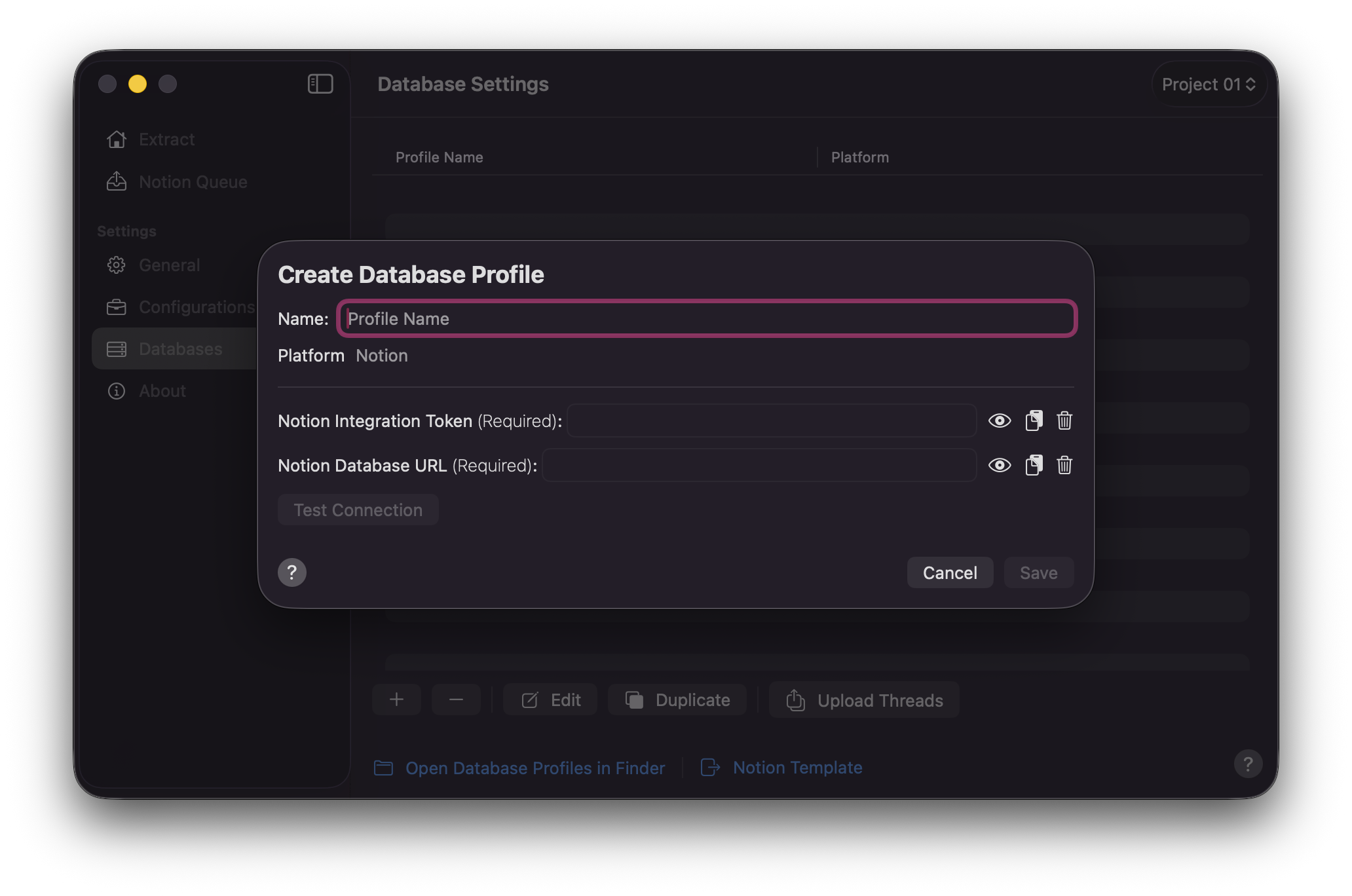
- Click the
+button to create a Database Profile. - Enter a Profile Name.
- Enter your Notion Integration Token and Notion Database URL.
- Click
Test Connectionto confirm Shot Data can reach the database and that the title column isShot ID. - Click
Save.
Enter your Notion Integration Token here. The field is secure.
Enter your Notion Database URL here. The field is secure.
Info
Duplicate the
After you enter the token and Database URL, click Test Connection. Shot Data checks that the integration can open the database and that the title (key) property is named Shot ID. A green tick means the profile is ready for upload. A red status shows the error so you can fix the token, URL, or database schema before you save or extract.
Info
Test Connection only reads from Notion. It does not create pages, upload images, or change your database columns. The status clears if you edit the token or Database URL.
Warning
Upload aborts if the live Notion database has no title property named Shot ID. Use Test Connection to catch that before extract or Notion Queue. Other manifest fields that are missing from the database schema are skipped (they are not created automatically). Image Filename still drives the page image upload even when it is not a database property; Icon Image sets the page icon and is not stored as a property.
Upload Threads
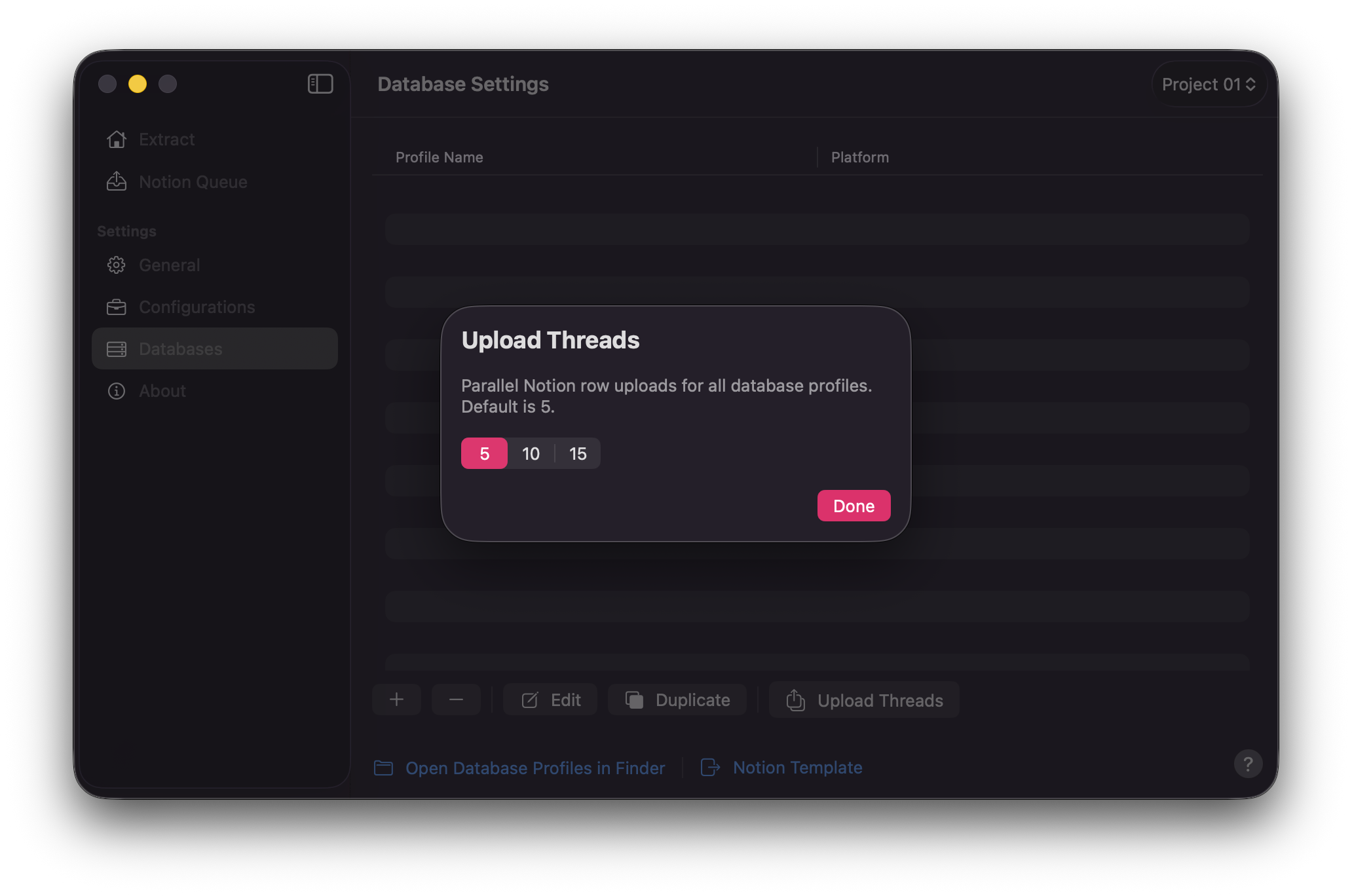
Press Upload Threads in the Databases toolbar to set how many Notion rows upload in parallel. Choices are 5, 10, and 15. By
Default
the value is 5.
Info
Upload Threads is app-wide. It applies to every Database Profile and to both extract-time upload and Notion Queue. It is not stored on individual profiles.
Duplicate Database Profile
You can duplicate any Database Profile with the Duplicate button.
Info
After duplicating, edit the copy and replace the Notion Database URL so each profile points at the correct destination.
Edit Database Profile
You can edit any Database Profile with the Edit button.
Info
When a token expires or you rotate credentials, open the profile with Edit, update the values, click Test Connection, then Save.
Delete Database Profile
- Select a profile in the table.
- Click the
-button. - Confirm deletion when prompted.
Open Database Profiles in Finder
Select Open Database Profiles in Finder to reveal the folder that stores your Database Profile .json files. You can copy those files elsewhere for backup and restore.
Notion Template