Overview
Shot Data has been crafted with a focus on simplicity, so you can turn a Final Cut Pro still-image timeline into a shot list with minimal interaction. A central aim is fewer clicks and a smoother path from FCPXML to PNG frames and a Notion or CSV manifest.
The application is designed to feel intuitive — clear enough to navigate without constantly consulting documentation.
That said, this website is ready when you need it: answers to common questions, and guidance for settings, Notion upload, and the rest of the workflow.
Install
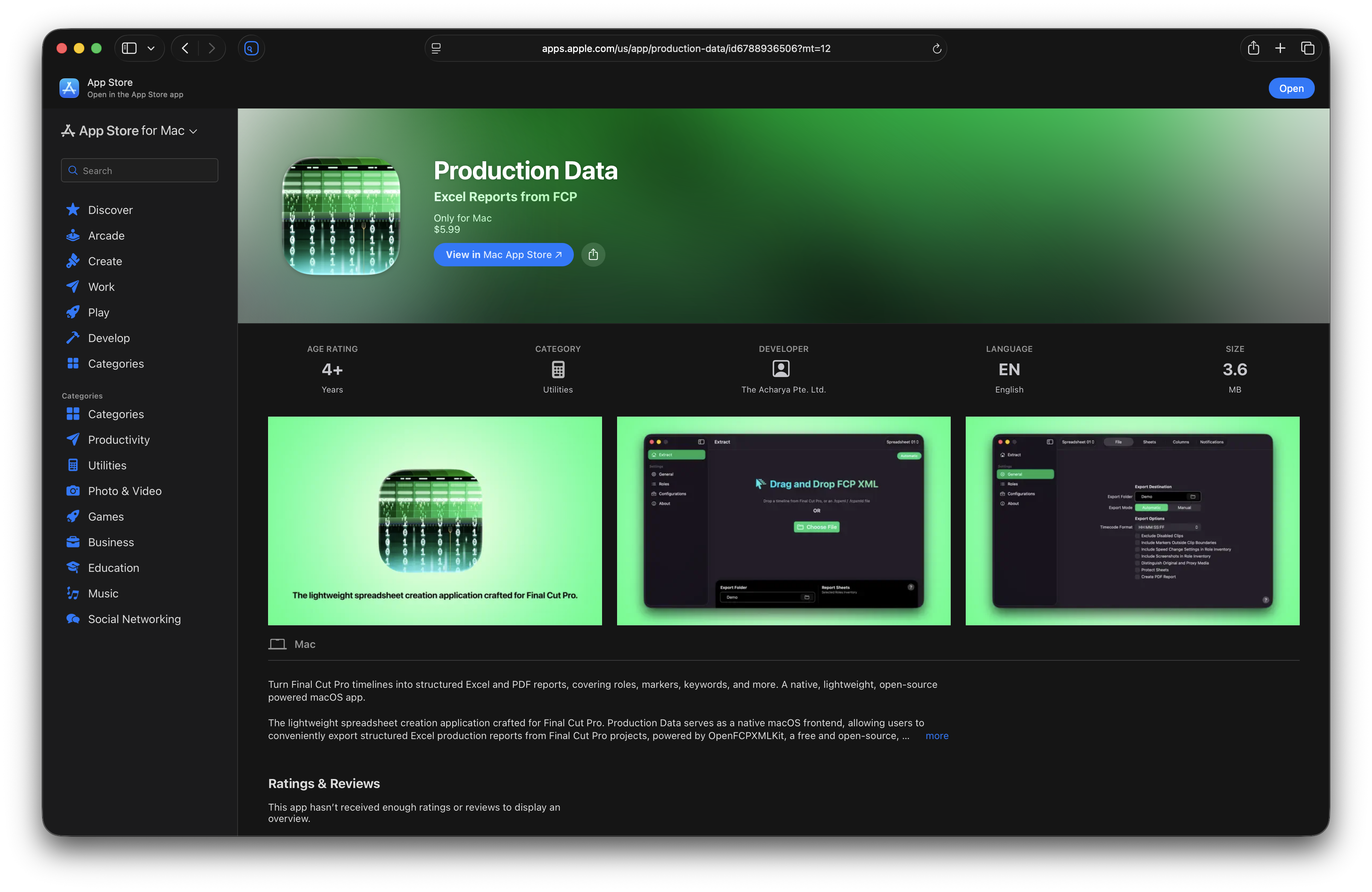
- Download Shot Data from the Mac App Store.
- Launch Shot Data.
- Read
Onboardinginformation and instructions. - Create your first Configuration.
- Return to General Settings and select your
Export Folder. - Create a Database Profile.
- Press
⌘Son your keyboard toUpdate Active Configuration. - Start using Shot Data and have fun!
Info
Whenever you change settings on an active Configuration, press ⌘ S to Update Active Configuration. Press ⌘ Z to Discard Changes and revert to the last saved preset.
Onboarding
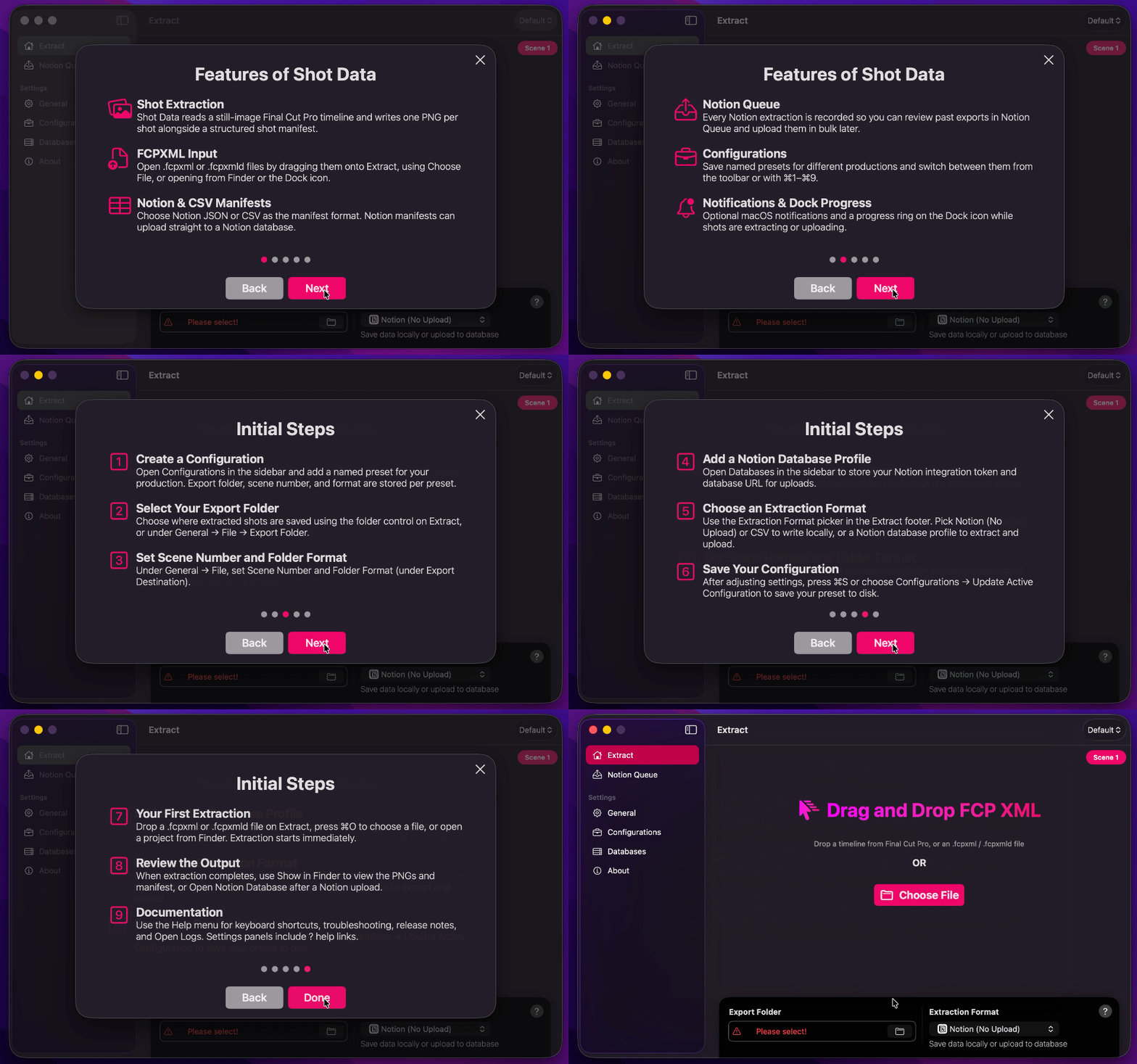
It is imperative to review Shot Data’s Onboarding information and instructions to familiarise yourself with its key features and perform necessary initial steps before using the application.
Uninstall
As Shot Data is distributed through the Mac App Store, you can uninstall it the same way as any other Mac App Store application. Simply locate Shot Data in your Applications folder, then drag its icon to the Trash, or right-click the icon and select Move to Trash.
Should you wish to remove any residual application data, caches, or preference files that may remain afterwards, you may find a third-party uninstaller helpful. Two well-regarded options are Pearcleaner, a free and open-source uninstaller, and AppCleaner, a free, long-established utility. Either of these can scan for and remove any leftover files associated with Shot Data beyond the standard uninstall process.