Troubleshooting
Below, you will find a comprehensive list of common issues users may encounter, accompanied by solutions to resolve them.
If you are still stuck after following these steps, open the logs (Help → Open Logs) and retain the log files from the Logs folder when seeking further help.
How to access the logs in Shot Data?
To access the logs for Shot Data, navigate to the Help menu and select Open Logs.
This opens the Logs folder in Finder and writes a current snapshot of application activity to shotdata_log.txt. During parse and extraction, Shot Data also writes openfcpxmlkit_log.txt in the same folder.
Info
Both files live under Application Support for Shot Data. Share them only if you are comfortable doing so when requesting support — they may include project and file names from your machine. Notion upload messages appear in shotdata_log.txt (there is no separate Notion upload log file).
Failed to extract completely — please select a valid export folder
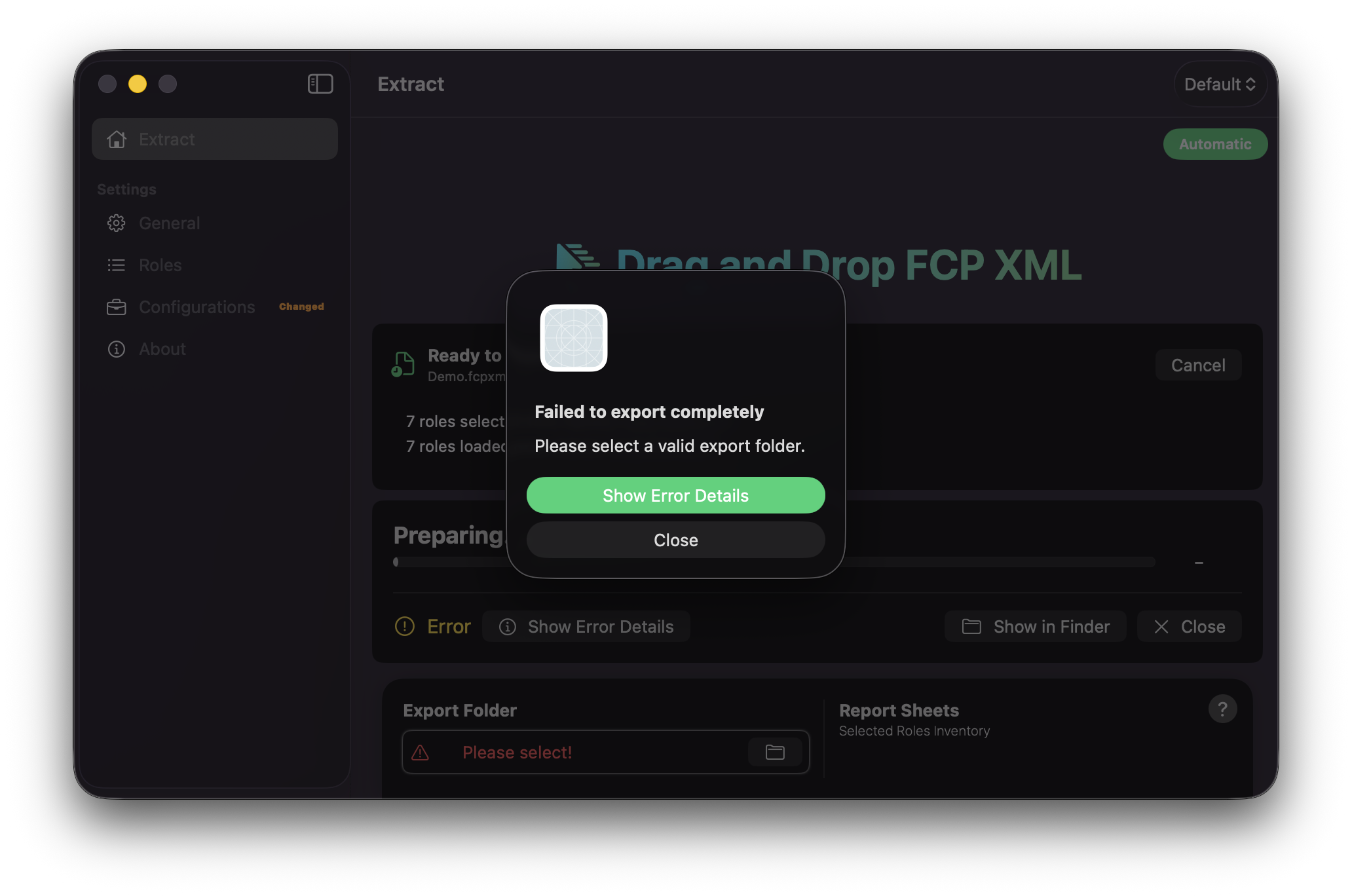
Shot Data cannot write shot PNGs or a manifest until you choose an export destination.
Info
It is important to create your first Configuration with a valid Export Folder before exporting. Select a destination under General Settings, then press ⌘ S to Update Active Configuration.
You will see this when:
- The Extract footer shows
Please select!next toExport Folder - You start an extraction (drop,
Choose File, orFile → Open…) without a folder selected - The alert reads
Failed to extract completelywith the messagePlease select a valid export folder.
On Extract, click the folder control in the footer, or open General Settings → File and choose a destination under Export Destination. Select a folder you can write to (for example on your Mac, an external drive, or a mounted network volume). Confirm the footer no longer shows Please select! — it should display the folder name — then provide your timeline again.
Info
The export folder is remembered with a security-scoped bookmark. Shot Data does not store a plain file path as the source of truth. If the volume is disconnected later, see
Export Folder shows “Missing Folder!”
The footer (and General → File) shows Missing Folder! when a previously chosen destination can no longer be resolved — for example the drive was ejected, the network volume is offline, or the folder was moved or deleted.
Reconnect the drive or volume if it was disconnected, then click the folder control and choose the destination again (or a new one). Right-click the folder control and choose Clear Path if you need to remove the old selection first, then pick a folder again.
Scene Number must not be empty
Extraction aborts if Scene Number is blank. The alert message reads Scene Number must not be empty. Set one under General → File.
Set a Scene Number under General → File, or use the ruby Scene Number badge at the top-right of Extract. Alphanumeric values are allowed (for example 50A produces shot IDs such as 50A-001).
The extraction fails with an alert
When an extraction does not finish successfully, Shot Data shows Failed to extract completely.
- Press
Show Error Detailson the alert, or - Press
Show Error Detailsin the progress footer on Extract
This opens the Failed Tasks window with the file path and the error message for each failure. Hover a truncated cell to see the full text. Use that message when searching this page or when contacting support.
Press Close on the progress footer when you are finished reviewing the result.
Prompted to choose a media folder / stills cannot be read
After planning shots, Shot Data may show Choose Media Folder when it cannot open the planned stills. That happens under App Sandbox — for example after dragging a timeline from Final Cut Pro (staged in Cache), when stills live on another volume, or when stills sit inside a Final Cut Pro library (.fcpbundle).
The panel title is Choose Media Folder. The message is Original media, a Final Cut Pro library, or an enclosing folder. Press Grant Access after you select one of those.
You will see this when:
- The progress phase on Extract reads
Choose Media Folder - Stills are stored inside a Final Cut Pro library package (
.fcpbundle) - The export destination is set, but the source images are on a different volume or folder
What to choose:
- The folder that holds your original stills
- The Final Cut Pro library (
.fcpbundle) itself — pick the library, not only a parent folder, when stills live inside it - A parent folder that contains the library or the stills
If the first choice does not unlock every still, Shot Data shows the same Choose Media Folder message with Choose Another Folder or Cancel Extract.
- Press
Choose Another Folderto pick again - Press
Cancel Extract, or close the panel, to stop the extraction cleanly (it is not treated as a hard failure)
Info
The Export Folder bookmark does not automatically cover source media. A media-folder grant is session-only for that extract and is not saved as a setting. Shot Data will not skip unreadable stills.
See also Choose Media Folder on Extract, and
Extraction fails on video, Motion templates, titles, or other non-stills
Shot Data only extracts the FCPXML primary timeline (primary spine). Connected clips and secondary lanes are ignored.
Only still images on that primary timeline are supported. Extraction will fail (or skip unsupported items by throwing) when the primary spine includes things such as:
- Video clips
- Motion templates / titles / generators
- Primary-spine audio
Use a stills-based shot timeline on the primary spine, then extract again. If the error text is unclear, open the logs (Help → Open Logs) and check openfcpxmlkit_log.txt.
Only one timeline is accepted when I drop several files
This is intentional. Shot Data processes one FCPXML timeline per action. If multiple items are offered at once, only the first item is used.
Provide one timeline at a time.
Test Connection shows a red status
On Databases, after you enter an Integration Token and Database URL, click Test Connection before you save or extract.
A green tick means Shot Data can reach the database and the title (key) property is named Shot ID. A red status means the profile is not ready yet — read the message beside the icon.
Typical error messages:
Also check:
- Outbound HTTPS is allowed for Shot Data (for example if you use Little Snitch).
- Notion’s status if Notion itself is degraded.
Test Connection only reads from Notion. It does not create pages, upload images, or change columns. Editing the token or Database URL clears the previous status — run the test again after you fix the issue.
See also Databases and
Notion upload fails / Shot ID errors
When uploading to Notion (during extract or from Notion Queue), check:
- Open your Database Profile, confirm the Integration Token and Database URL, then click
Test Connection— fix any red status before you extract or queue an upload. See Notion Prerequisite andTest Connection shows a red status . - The Notion database title (key) column is named
Shot IDand uses Notion’s Title property type. Shot Data will not create that column. Typical messages:Could not parse a Notion database ID from the URL.Notion database must have a title property named "Shot ID". Use the Shot Data Notion template, or rename the title column to "Shot ID".Notion database column "Shot ID" exists but is not the title (key) property. Rename the database title column to "Shot ID".Notion API 401: …/Notion API 403: …/Notion API 404: …(token, Connections, or wrong URL)Database has no data_sources — reconnect the integration and retry
- The integration is connected to the database in Notion (Connections).
- If you use a firewall such as Little Snitch, allow outbound HTTPS for Shot Data.
Open Help → Open Logs and review recent lines in shotdata_log.txt. Manifest fields that are missing from the live Notion schema are skipped (logged once); they are not created automatically.
See also Databases.
Experiencing slow uploads in Notion
Notion enforces variable rate limits on its API. Upload speed also depends on your network and Notion’s servers. Check Notion’s status if uploads suddenly stall.
You can lower parallel uploads under Databases → Upload Threads (5, 10, or 15; default 5). For large shot lists, prefer smaller batches via Notion Queue rather than one very large upload.
For Notion’s current limits, see their request limits documentation.
My CSV extract does not appear in Notion Queue
Only Notion extracts are listed in Notion Queue. CSV extracts are local only. Use Notion or Notion (No Upload) as the Extraction Format when you want Queue support.
Install Location Warning
macOS may show Install Location Warning if Shot Data is not running from the Applications folder.
Move the application into /Applications, then launch it again. Choose Don't show again only if you intentionally run it from another location and accept the risk of sandbox or bookmark quirks.
Couldn’t create or rename a configuration
Named configurations must be unique. If a configuration with the same name already exists (in the list or as a file on disk), Shot Data refuses to overwrite it and shows an alert such as Couldn't create configuration.
Choose a different name. The built-in Default configuration cannot be saved as a named file, renamed, or deleted.
See Configurations.
Configurations shows a “Changed” badge
The orange Changed badge means the active non-default configuration has unsaved edits compared with its saved preset.
- Press
Update Active Configuration(⌘S) to save, or - Discard changes from the Configurations panel or menu (
⌘Z)
Extractions still use your current in-memory settings even when Changed is visible — the badge is a reminder to save the preset if you want those settings kept for next time.
Notifications do not appear
Under General → Notifications:
- Confirm
Notification Frequencyis not set toNever. - Press
Open macOS Notification Settingsand allow notifications for Shot Data. - Remember that Shot Data may only appear in Notification Settings after the first authorisation prompt.
- When Shot Data is the frontmost app, banners may be silent or less obvious — check Notification Centre.
Each Report Step sends intermediate banners without sound; the final completion notification uses the default sound.
Dock progress ring does not show
Enable Show Progress on Dock Icon under General → Notifications. Progress appears only while an extraction (or upload) is running.
Clean Cache — when should I use it?
File → Show Cache reveals the temporary FCPXML staging folder. File → Clean Cache (⌘ K) empties that folder only.
Use Clean Cache if staging files have accumulated after many Final Cut Pro drags or text clippings. It does not delete preferences, Configurations, Database Profiles, Logs, or your export folder.
Clean Cache is disabled while an extraction is in progress. Wait until the run finishes, then clean.
Info
Cache files may be named like FCP Drop-…. Export folders and shot-list names still use the timeline name from the project — not the Cache staging name.
Open Notion Database does not appear
Open Notion Database is shown on the Extract completion card only after an extract that used a Notion Database Profile, when that profile’s Database URL can be opened. It is not shown for Notion (No Upload) or CSV extracts, and it is not available on Notion Queue.
If Notion Desktop App is not installed, the same button opens the database in your default browser. Option-click Open Notion Database to open the database in your default browser even when Notion Desktop App is installed.
Open Notion Database does not show the uploaded database
If Notion Desktop App is already running, it may come to the front without switching to the uploaded database. Option-click Open Notion Database on the Extract completion card to open the database in your default browser.
Option-click Open Notion Database still opens Notion Desktop
Option-click Open Notion Database on the Extract completion card opens the database in your default browser. If that browser is Safari, Safari may still open Notion Desktop App when it is installed. That is normal. Choose a different browser if you want the database to stay in the browser.
Drag and drop from Final Cut Pro does not start an extraction
Set a valid Choose File / File → Open…. Finder text clippings are accepted only when they contain FCPXML content, and only one timeline is processed per action.
If nothing happens, try File → Export XML from Final Cut Pro and open the .fcpxml / .fcpxmld file instead.
Library folders failed to initialise
On first launch, Shot Data creates its Application Support folders (preferences, Configurations, Logs, Cache). If you see Failed to initialize Library folders, free disk space, ensure the app may write inside its sandbox container, then quit and reopen Shot Data.
If the alert persists, contact support with a description of your macOS version and install location.
Shot Data does not appear under Files and Folders privacy
Sandboxed open-panel grants often do not list the app under System Settings → Privacy & Security → Files and Folders. That is normal. Access comes from the folders you choose in Shot Data (export folder, media folder, or a Final Cut Pro library), not from a Full Disk Access toggle.